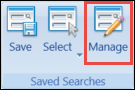
The Manage Saved Searches window is accessed by selecting the Manage button on the Data Miner ribbon.
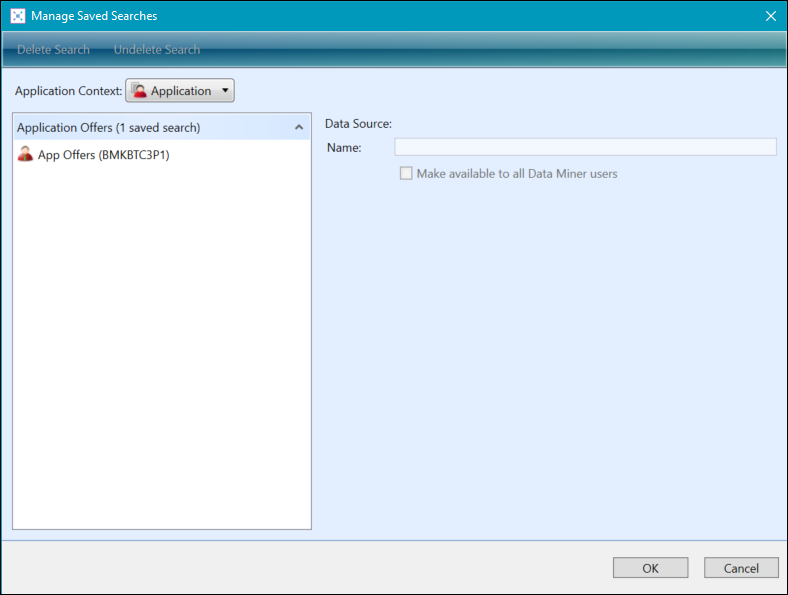
The Manage Saved Searches window displays saved searches for application contexts. The application context displayed will match that of the context currently selected on the Data Miner screen.
From the Manage Saved Searches window, you can:
 View saved searches for different application contexts
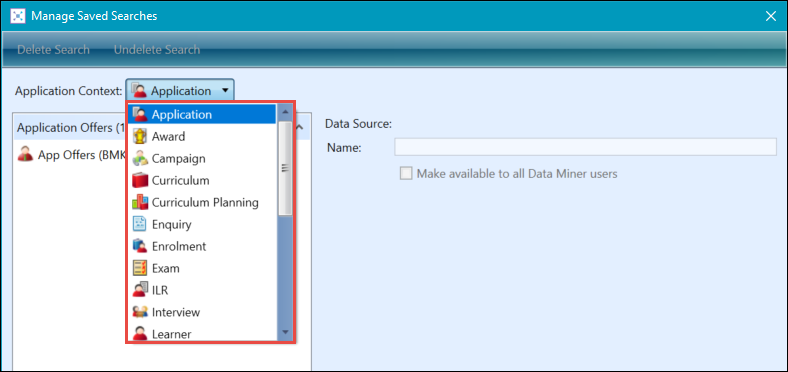
You can select a different application context from the Application Context drop-down list.
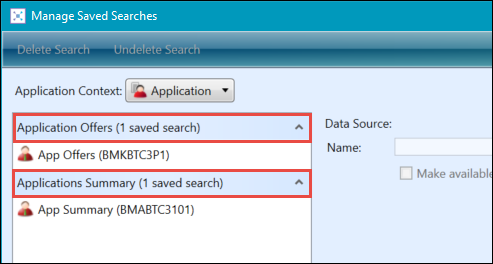
The saved searches are grouped by their own views for each application context, displaying the number of saved searches for each view in brackets.
Delete saved searches
To delete a saved search using the Manage Saved Searches window:
-
Select the saved search you want to delete, and then select the Delete Search button.
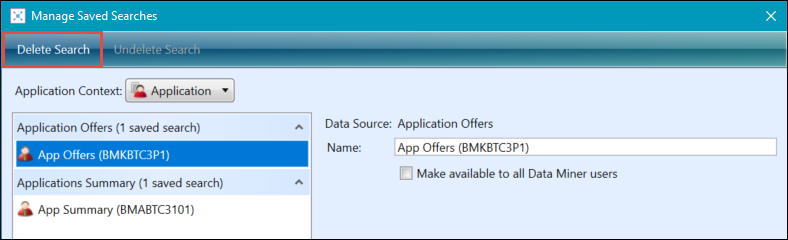
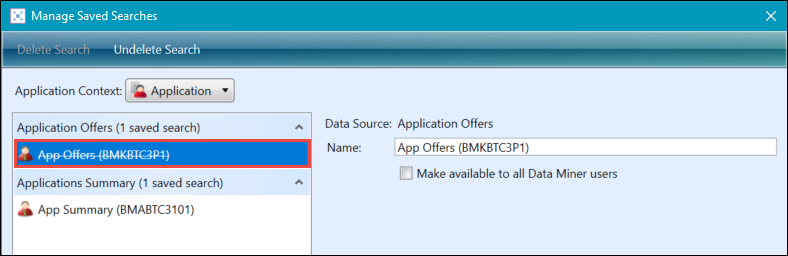
The selected saved search is marked for deletion and has a line struck through it.
 Important.If required, you can select the Undelete Search button to cancel the deletion.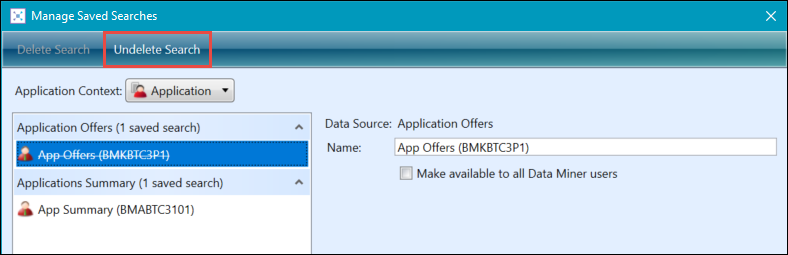
-
Select OK to confirm the deletion.
The search is deleted.
Make saved searches available to all Data Miner users
To make a saved search available for all Data Miner users using the Manage Saved Searches window:
-
Select the saved search that you want to make available to all Data Miner users, and then select the Make available to all Data Miner users check box.
Important.The selected saved search will now display a global icon.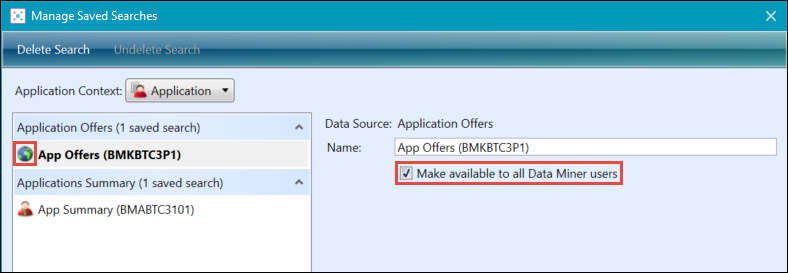
-
Select OK to confirm the process.
The search is made available to select for all Data Miner users.